In this article you will learn how to complete your order by checking out.
Once you are happy with all of your campaigns, proceed to your shopping cart to begin the checkout process. You can locate your shopping cart by clicking here or the "CART" button in the header.

After you reach the shopping cart click the "Checkout >" button to proceed to the checkout page. You can also locate the checkout page by clicking here.
Continue by completing each section on the checkout page by:
- Verifying each job/campaign is correct by matching the item to location and quantity in the "QUANTITY AND DESCRIPTION" section.
- Fill out the "BILLING INFORMATION" section of the form with the appropriate information.
- Choosing your payment option in the "PAYMENT INFORMATION" section.
- If you belong to a corporate account that has invoicing enabled, you can choose to have your invoice sent to your corporate office. Otherwise, enter your payment information.
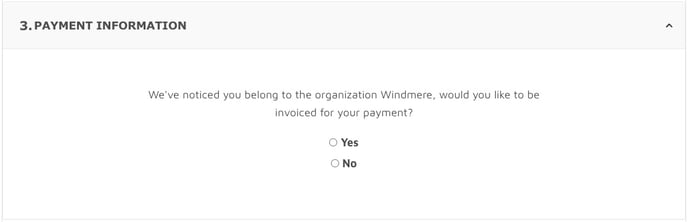
- If you belong to a corporate account that has invoicing enabled, you can choose to have your invoice sent to your corporate office. Otherwise, enter your payment information.
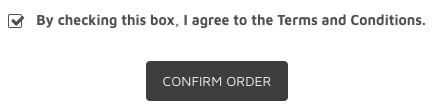
- Confirming your order by selecting the checkbox at the bottom of the form and clicking the "CONFIRM ORDER" button.
Once you confirm your oder you will see a processing bar under the "CONFIRM ORDER" button. Please wait while your proofs are generating.

If you notice your order is taking a while to complete, please scroll to the top of the form to ensure there are no error message and that every section is completed.

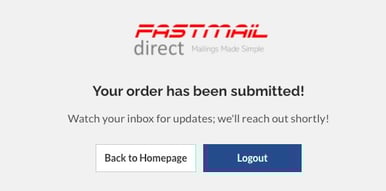
Upon completion of your order you will receive a message verifying that the FastMail team has received it. From there you will receive an email confirmation with all of your order details.